

The Charts page is accessible to volunteers and administrators to showcase top volunteers and total site hours. It can be accessed by users from their hour log or the event calendar.

Total Volunteer Hours
The first graph will show total volunteer hours for the site, based on your selected time frame. Depending on your settings, it will also show which volunteers contributed the most hours.

Leaderboard
In the Leaderboard section, you can view the top volunteers and how many hours were logged. This option is perfect for organizations trying to encourage friendly competition!

Log
In the Log section, volunteers can see the daily details of who volunteered, where, and how many hours.

To enable/disable sections on the charts page
Go to Organizer Dashboard

Click on Settings > More Settings > Volunteer Charts
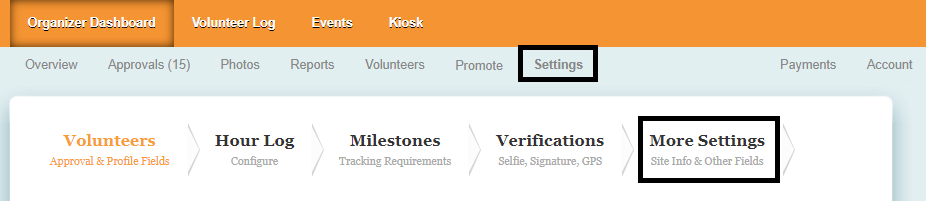
Update your preference for each chart section to enable/disable it for your site and then save your changes.
